Researchers: ditch conda, embrace uv
On the merits of declarative design and good coding practices for research.
Originally published on Substack on October 5, 2025.
If you’re a graduate student like me who writes a lot of code and you haven’t read Patrick Mineault’s Good Research Code Handbook, I highly recommend it. It’s an approachable guide built on a simple premise: organizing your code saves you from frustration, makes your research more reproducible, and, most importantly, frees up your limited mental energy to focus on actual research problems. How you structure your code is how you think, and skipping a 30-minute project setup can cost you hours of refactoring later.
Over the years my own practices have deviated slightly from Patrick’s, but the core principles remain the same. I’m writing this post because I recently adopted a new tool that has improved my approach to Python environment management and made it much easier to adhere to the tenets of the handbook: uv.
This might come as a surprise to some. In the handbook, Patrick recommends conda, which is what just about every researcher I know uses. While conda was a step in the right direction for managing the complex dependencies common in data science, uv introduces a philosophy that perfectly aligns with the handbook’s goals of reducing friction and guaranteeing reproducibility.
The problem that good coding practices solve
Mineault’s handbook correctly identifies the “monolithic Python environment” as a primary source of pain. This is the single, undocumented environment where every package you’ve ever needed lives. It eventually becomes impossible to recreate, leading to hours of frustration when you move to a new machine or return to a project months later.
The handbook perfectly illustrates this with the classic XKCD comic on Python environments.
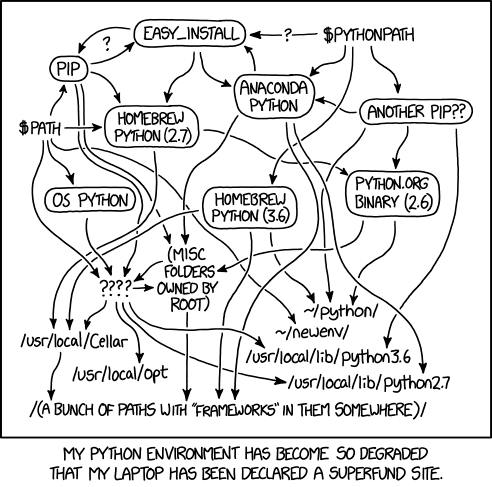
We’ve all been here. Thankfully, we don’t have to be. Source: xkcd.com/1987.
The standard conda workflow described below, while an improvement, still has its pitfalls.
conda create -n my_env
conda activate my_env
conda install numpy pandas ...
# Work for a while, installing more packages as needed...
# Remember to run:
conda env export > environment.yml
The problem is that it’s easy to forget the last step, leading to a mismatch between your environment and your documentation. This workflow encourages documenting your environment after the fact, not before.
Furthermore, two bad habits are easy to fall into:
- Reusing environments. There’s nothing tying a conda environment to a
specific project folder. Often the fastest way to start a new project is to
reuse an existing environment. (Raise your hand if your
baseenvironment has more packages than an Amazon warehouse — I know mine does.) - Accumulating cruft. While exploring, you might install a package, decide not to use it, and forget to uninstall it. Over time, your environment becomes bloated with unnecessary dependencies.
A better way: uv and declarative thinking
Enter uv, a fast, all-in-one project and environment manager written in Rust. The key shift uv introduces is moving from an imperative (“do this, then this”) to a declarative (“this is what I need”) workflow.
The traditional conda workflow is imperative. Think of it like cooking a familiar dish from memory — a dash of soy sauce here, a splash of mirin there, tasting and adjusting as you go. You might jot down notes afterward, but the process is fluid. This approach is great for building intuition, but if you wanted to recreate that dish exactly months later, it would be nearly impossible.
In contrast, the uv workflow is declarative. This is like following a precise recipe that lists every ingredient with exact measurements before you start. The recipe is the definition of the dish. The beauty of uv is its speed. It’s so fast that you can experiment with new “recipes” — adding or changing dependencies — almost instantly. You get the creative freedom of the imperative style with the rigor and safety of a declarative one.
With uv, you declare your project’s direct dependencies in one central file,
pyproject.toml. This file acts as the blueprint for your environment, where
you define the packages you know you’ll need. uv then does all the hard work
to resolve the full dependency tree and records the exact versions of every
package in a uv.lock file. The final environment is a direct consequence of
the lock file, making it trivial to reproduce the environment anytime, on any
machine.
This massively increases confidence. My Python environments used to feel like an unknowable tangle of packages that might break when I added a new one. With uv, I haven’t worried about unexpected package conflicts or struggled moving between computers for months. It just works, every time.
Getting started: your first uv project
Excited to start? Here’s a quick guide to creating a new project.
Step 1: Install uv
No need to explain this one. Check out the installation page.
Step 2: Create your pyproject.toml
This single file replaces the need for setup.py, environment.yml, and
requirements.txt. Here’s a minimal example.
[build-system]
requires = ["setuptools>=61.0"]
build-backend = "setuptools.build_meta"

[project]
name = "my-research-project"
version = "0.1.0"
requires-python = ">=3.12"
dependencies = [
    "torch>=2.7.0",
    "numpy",
    "matplotlib",
    "pandas",
    "ipykernel>=6.29.5",
]

[tool.setuptools]
packages = ["src"]
Key parts to notice:
- Project metadata (
[project]): the project’s name, version, and the Python version it requires. - Direct dependencies (
dependencies): the list of packages your project needs. Notice the mix of pinned versions ("torch>=2.7.0") for critical packages and unpinned versions ("numpy") for flexibility. - Build system (
[build-system],[tool.setuptools]): this standard configuration makes your helper code installable. Thepackages = ["src"]line tells Python to treat thesrcfolder as a package, so you can import your own functions withimport src.my_function, just as the handbook recommends.
Step 3: Create the virtual environment
Navigate to your project directory in your terminal and run:
uv venv
This creates a local virtual environment inside a .venv folder. Be sure to
add .venv to your .gitignore.
Step 4: Sync your environment
Now, tell uv to make your environment match your pyproject.toml:
uv sync
That’s it. uv reads your pyproject.toml, resolves the complete dependency
tree, creates a uv.lock file with the exact package versions, and installs
everything into your .venv folder.
Want to update all your packages to their most recent versions?
uv lock --upgrade
uv sync
The first command updates the versions of all packages in the lock file, and the second propagates those changes to the Python virtual environment.
An aside on the magic of uv
When you run uv sync the first time or uv lock --upgrade, something pretty
impressive is happening behind the scenes. Before uv can assemble the
environment you requested, it needs to do something called dependency
resolution. In this step, uv must find a compatible set of versions for all
your project’s dependencies, their dependencies, and so on. This is a
notoriously hard problem (NP-hard, in fact).
Sometimes a solution is impossible. For instance, if package A requires
numpy<=1.26 but package B needs numpy>=2.0, no single version of numpy
can satisfy both. While this wouldn’t be a problem for some other languages,
Python can’t install two different versions of the same package in one
environment. That means sometimes an environment cannot be built given a list
of dependencies. If this is the case, uv will tell you immediately.
A more common challenge, however, is ambiguity. For example, what happens if
your analysis library requires scipy>=1.10 but your plotting library needs
scipy<1.14? There are several versions of scipy that could work. uv must
find a single version that satisfies both constraints. Its resolver will
analyze the possibilities and, by default, select the newest compatible
version that works for both — perhaps 1.13.3.
Now, imagine scaling this puzzle to the hundreds or even thousands of
dependencies (and dependencies of dependencies) in a modern machine learning
project. This is where uv shines. It solves these dependency graphs orders of
magnitude faster than conda or pip. Once it finds a solution, it records the
exact version of every single package in the uv.lock file. The lock file is
the key to perfect reproducibility and should be committed to version control
alongside your code.
The declarative workflow with uv
Using uv, the iterative cycle of research coding becomes simple and robust.
- Need a new package? Add it to the
dependencieslist inpyproject.toml. - Update your environment by running
uv sync. - Use
uv run python path/to/my-script.pyto execute a script within the context of your virtual environment. - Repeat.
This workflow makes collaboration trivial. The instructions in your
README.md to replicate your environment are incredibly simple:
git clone <your-repo-url>
cd <your-repo>
uv venv
uv sync
uv run python path/to/my-script.py
The environment is guaranteed to be identical every time. Pretty nifty.
Less time fighting tools, more time for science
If you’ve made it this far, I hope I’ve convinced you of some of the benefits of switching to uv. It’s faster, simpler, and promotes a declarative-first workflow that is inherently reproducible. I spend a lot of time thinking about the sources of friction in my research, and getting Python environment management to feel smooth and secure has been a big win for me. Reproducible results need reproducible environments, and uv makes this a core part of the process, not an afterthought.
Give uv a try for your next project. You can use this template GitHub repository to get started.
On a personal note, thanks for reading my first Substack post. I wanted to start with a practical topic like this because, as any grad student knows, our time and mental energy are precious. Finding tools and workflows that help us reduce friction and focus on actual research is something I’m passionate about. Time permitting, I hope to write more on other topics that interest me, from neuroscience to technology to public policy.
Appendix: practical tips I’ve found along the way
A few useful tips I’ve picked up while using uv.
Activating the environment. If you want to activate the environment to
work in an interactive shell (like in conda), run source .venv/bin/activate
on macOS/Linux or .venv\Scripts\activate on Windows.
Install an IPython kernel for Jupyter. To use your uv environment in
Jupyter, first add ipykernel to your pyproject.toml and run uv sync.
Then, run this from your project’s root:
uv run ipython kernel install --user \
  --env VIRTUAL_ENV $(pwd)/.venv \
  --name="my-project-name"
This tells IPython to create a new kernel named my-project-name and points
it to the Python executable inside your project’s local .venv folder. Now,
when you open Jupyter, you’ll see my-project-name as an available kernel.
For more on using Jupyter with uv, see
this article.
Updating a single package. To update a specific package to the latest
version allowed by your pyproject.toml constraints:
uv pip install --upgrade <package-name>
This updates your uv.lock file automatically.
Adding a public GitHub repo as a dependency:
dependencies = [
    "sphinx @ git+https://github.com/sphinx-doc/sphinx#egg=sphinx",
]
Adding a private GitHub repo as a dependency (requires SSH keys set up with GitHub):
dependencies = [
    "my_pkg_name @ git+ssh://[email protected]/my-github-name/my_repo.git",
]
To update a GitHub dependency to the latest commit, run
uv pip install --upgrade <package-name>.
Installing a local package in editable mode. For active development on a
local dependency, use uv pip install -e /path/to/local/dependency. Note:
this is an imperative step. Running uv sync will remove this package unless
it’s also in your pyproject.toml. Use this for temporary development, but
strive to keep pyproject.toml as the source of truth.
Note on pyproject.toml. It’s worth knowing that pyproject.toml isn’t
a uv-specific file. It’s the modern, standardized way to configure Python
projects, as defined in PEP 518. Tools
like pip, setuptools, and hatch all use it. By using uv, you’re adopting best
practices from the broader Python ecosystem. You can learn more in the
official Python Packaging User Guide.